
Photo Recover-File Recovery
NetConnectTools
3.2837.00 Reviews
- Version
- 1.7.3.0
- Installs
- 10.00M
- Age Rating
- Everyone
Screenshots
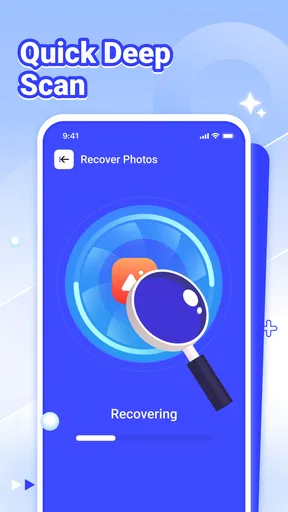
Our Review of Photo Recover-File Recovery
 Analysis by Appyee
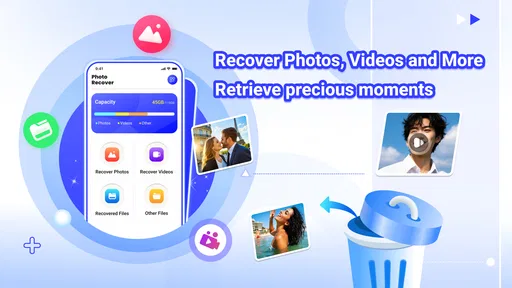
Accidentally deleting a photo is one of those small mistakes that can turn an ordinary day into a stressful search through folders, chats, and cloud accounts. Photo Recover-File Recovery is built for that exact moment: it is a free tools app from NetConnect that focuses on helping you look for recently lost files instead of making you search manually through every possible location. I found its appeal less in flashy extras and more in the time it can save when a picture disappears at the wrong moment.
The app is listed with the short description “Photo Recover,” while its broader purpose is restoring accidentally deleted files. That distinction matters because I would approach it primarily as a recovery utility, not as a complete file-management system or a replacement for a proper backup routine. It is suitable for Everyone, runs on Android 7.0 and later, and its current version is 1.7.3.0. Those details make it accessible to people using older Android phones as well as newer devices.
After trying it, my honest view is that it is most useful when you act quickly and know roughly what you deleted. It can reduce the panic of a missing image, but it should not encourage anyone to treat deleted files as permanently recoverable. Recovery tools work best as a second chance, not as a substitute for Google Photos, another cloud service, computer backups, or a careful habit of checking the trash folder before emptying it.
Recovering a missing photo without turning it into a search project
I’ll start by narrowing the problem to the missing image rather than treating recovery as a broad cleanup task. That makes it easier to judge whether a scan has found a useful original or merely a thumbnail or duplicate, and it keeps the next steps focused on preserving the one file that matters.
The problem this utility is trying to solve
Android storage can become confusing surprisingly fast. A photo may have come from the camera, a messaging app, a screenshot folder, a downloaded document, or an editing application. When it vanishes, remembering its original location is often harder than remembering the image itself. Opening each folder one by one is slow, and ordinary gallery apps are usually designed for viewing rather than recovery.
This is where the app has a practical role. Instead of asking me to reconstruct the entire path of a deleted image, it gives me a focused place to begin looking. That is especially useful after cleaning a gallery, removing duplicate pictures, or deleting a conversation attachment and then realizing that the attachment was important.
A realistic example is a family photo removed while clearing space before a trip. The mistake may not be noticed until later, when the image is needed for sharing or printing. With a recovery tool already installed, the first response is straightforward: open the app, inspect what it can find, and save the important result somewhere safe. That workflow is faster than guessing which folder held the original.
There is an important technical trade-off behind this convenience. Deleted files are not always immediately erased from storage; in many cases, the space they occupied becomes available for reuse. New photos, downloads, app caches, and system activity can overwrite that space. For that reason, I would stop taking new pictures and avoid large downloads as soon as I noticed an important deletion. The most useful recovery habit is acting before the phone has time to reuse the storage.
What I would do before opening the app
I would first check the trash or recently deleted area in the gallery and cloud photo service I normally use. Those locations are often safer because they preserve the original file and its normal metadata. If the picture was sent through a chat app, I would also revisit the conversation and its media section. A recovery scan is more valuable after those quick checks fail, not necessarily before them.
Next, I would stop unnecessary activity on the phone. This does not guarantee a successful result, but it avoids making the situation worse. I would not install several recovery tools in succession, because every installation and scan can add storage activity. Choosing one app, checking the results carefully, and saving only what matters is a cleaner approach.
I also recommend deciding where recovered images should go before starting. If the phone has very little free space, saving a recovered file back into the same crowded internal storage may create another problem. A computer, removable storage, or a dependable cloud destination can be a better final location when available. Photo Recover-File Recovery helps with the search, but the user still needs a sensible place to preserve the result.
First setup and the first useful scan
The first launch is best treated as a focused recovery session rather than a general tour. I would grant only the access the app requests for its recovery work, then begin with the simplest scan available. If the interface presents several locations or file groupings, starting with photos keeps the results easier to review than scanning everything at once.
That narrow approach is one of the small workflow improvements I would recommend. A broad search can produce a long list of thumbnails, cached copies, and files with unhelpful names. Looking for images first makes it easier to recognize the missing item and reduces the chance of saving an irrelevant file simply because its filename looks familiar.
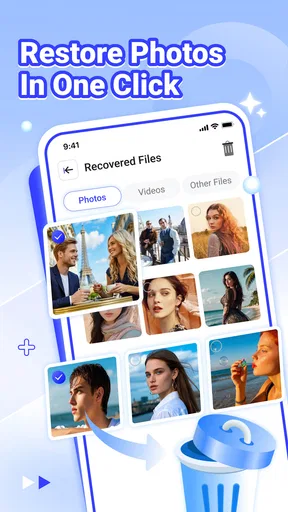
Once results appear, I would preview them rather than selecting everything. A thumbnail that resembles the missing picture may be a low-quality cached version, a duplicate, or an incomplete file. Checking the image before recovery saves storage and avoids filling the gallery with several uncertain copies. This is a more important habit than it sounds, particularly when the deleted item was part of a burst of similar photos.
I would then recover the clearest, most relevant version and open it in another gallery or file viewer. That second check confirms whether the file is genuinely usable instead of merely visible in the scan results. If the image opens correctly, I would immediately copy it to a safer destination and, if it is valuable, add it to a normal backup routine.
Everyday situations where it earns its place
The obvious case is a deleted camera photo, but the app can be useful for more than holiday snapshots. Screenshots are easy to remove during a cleanup session, especially when they were saved as references rather than intended for long-term storage. A recovery utility gives those images a chance to reappear when the screenshot folder has already been emptied.
Downloaded images are another practical example. Someone may save a receipt, shipping label, event ticket, or instruction image, use it once, and delete it without realizing it will be needed again. Searching manually can be difficult because the file may have been placed outside the main camera folder. A targeted recovery attempt is quicker than remembering every app that could have created it.
Messaging attachments create a different kind of problem. A picture may have been removed from local storage while the original conversation is no longer easy to access. In that situation, I would still check the chat first, but the recovery app can be a useful second step for images that were once stored on the device.
The tool is also relevant after an overenthusiastic storage cleanup. Android users often remove files in batches when a warning about low space appears. The danger is that useful images can sit beside disposable screenshots and duplicate downloads. Recovering only the irreplaceable items, rather than restoring an entire batch, is the sensible way to use it.
How it removes friction compared with usual alternatives
The usual alternative is manual folder hunting. That works when the file still exists somewhere visible, but it becomes frustrating after deletion because the original path may no longer be meaningful. Photo Recover-File Recovery gives the process a dedicated starting point, which is valuable when the user remembers the content but not the storage location.
Another alternative is relying only on a gallery trash folder. That is preferable whenever the file is still there, yet trash systems have retention rules and can be emptied accidentally. They also vary between gallery apps and cloud services. A recovery utility is not a replacement for those systems, but it can cover the uncomfortable gap after the normal safety net has failed.
Computer-based recovery tools can offer deeper control in some situations, particularly for people comfortable connecting a phone to a computer and managing storage images. The trade-off is setup time, technical knowledge, and less convenience when the problem happens away from a desk. I would choose the phone-based approach first for a single missing photo and consider a computer workflow only when the file is unusually important or the simpler route produces nothing useful.
Cloud backup is still the better long-term answer. It protects against loss before deletion and can preserve the original image more reliably than a recovery scan. However, backup systems can be disabled, incomplete, or unavailable for a particular folder. This app is most valuable as a gap-filler for those moments, not as a reason to stop backing up.
Small decisions that improve the result
One useful tactic is to search soon after deletion but save recovered items selectively. If I restore every result, I may end up with multiple copies and no clear idea which one is intact. Previewing first and keeping the best version makes the recovery folder easier to manage.
A second tactic is to search by the type of memory rather than by the app that created the file. If I remember that the missing item was a screenshot, I would begin with image results and recognizable thumbnails. If I remember only that it was a receipt, I would inspect narrow, document-like images instead of treating every result as equally important. This turns a potentially messy scan into a visual review.
A third is to separate recovery from organization. I would first preserve the successful file in a safe location, then rename it or move it into the correct album. Trying to clean up names and folders during the scan increases the chance of deleting or overlooking something. The app is better used as a rescue step than as a full archive manager.
Finally, I would avoid judging success only by whether a thumbnail appears. A visible preview is encouraging, but the recovered file still needs to open at a useful quality. For an image needed for printing, editing, or identification, resolution matters. A small cached copy may be enough for a quick reference but not for a permanent replacement.
Where the experience can become frustrating
Recovery is inherently uncertain, and that is the main limitation I would keep in mind. The app cannot make overwritten storage reappear. If the phone has continued recording videos, downloading large files, or installing apps after deletion, the chances of finding a complete original can fall. A disappointing scan is not necessarily a sign that the interface failed; sometimes the storage state has already changed.
Results can also require patience and judgment. A scan may surface duplicates, thumbnails, or files that are technically present but no longer useful. Users expecting one clean button that restores everything may find the review stage tedious. I prefer that the user has a chance to inspect results, but the process is less effortless than restoring an item from a standard trash folder.
Privacy is another reason to use care. Deleted images can be personal, and any recovery tool should be handled thoughtfully. I would review the app’s requested access on my phone, avoid recovering sensitive files into a shared gallery, and remove unnecessary copies afterward. The convenience of finding a file should not lead to careless handling of private pictures.
I would also skip this app if the missing file is already available in a reliable backup. Restoring the backed-up original is usually cleaner and preserves the expected quality and metadata. Likewise, people who need professional forensic recovery for a damaged device should not assume a general Android utility is enough. This app is aimed at everyday accidental deletion, not every possible storage failure.
Who should use it and who should look elsewhere
I think it is a reasonable choice for Android users who occasionally delete photos by mistake, clear folders too aggressively, or need a quick second attempt after checking the gallery trash. It is especially approachable for someone who does not want to connect a phone to a computer or learn a complicated recovery workflow. Being free removes the need to make a purchase decision during an already stressful moment.
It is less suitable for someone who expects guaranteed restoration, wants a polished backup platform, or needs advanced control over damaged storage. Those users would be better served by a consistent cloud backup strategy or a more specialized desktop recovery process. The app’s purpose is narrower, and that narrow purpose is also what keeps it easy to understand.
The public response is mixed rather than universally enthusiastic: it carries an average rating of 3.2 from around fourteen thousand ratings, with more than eight hundred written reviews. I read that as a reason to keep expectations realistic. The app has reached a substantial audience, with over ten million installs, but popularity does not change the basic limits of deleted-file recovery.
Performance expectations and practical fit
NetConnect positions this as a tools app, and that is the right way to think about it. I would not install it for daily entertainment or continuous background use. Its value appears when something has gone wrong and I need a direct route toward a possible solution. That means the best experience depends on preparation: keeping enough free storage, knowing where recovered files should go, and acting quickly after deletion.
The Everyone age classification also makes it broadly approachable in a household, although adults should still guide younger users when the recovered content is private or when the phone contains shared accounts. The free price is convenient, but “free” should not be confused with guaranteed results. The real benefit is the chance to save time and possibly retrieve an image that would otherwise require much more effort to locate.
Because the app supports Android 7.0 and later, owners of older phones are not automatically excluded. On any device, though, I would keep the first attempt modest: search for the missing photos, inspect the previews, recover only the best candidates, and verify them outside the recovery screen. That workflow is more dependable than launching a huge search without a plan.
My final recommendation
Photo Recover-File Recovery is worth keeping in mind for the specific emergency it addresses. I like that it gives an ordinary Android user a simpler first response than manual folder hunting, especially after a mistaken cleanup or an accidentally deleted screenshot. Its strongest advantage is not a promise of miracles; it is the time and confusion removed from the first recovery attempt.
My recommendation comes with a clear condition: use it quickly, use it selectively, and verify every recovered file. Check the normal trash and backups first, stop unnecessary storage activity, and preserve successful results somewhere safer than the location where the deletion happened. If the image has been overwritten or the device has a deeper storage problem, another option may be necessary.
For a free recovery tool from NetConnect, it has a sensible place in an Android troubleshooting kit. I would install it for occasional accidental deletions, but I would not depend on it as my backup plan. If you want a straightforward chance to recover a missing photo without immediately reaching for a computer, it is a practical app to try, provided you approach it with realistic expectations.
Verdict
Strengths of Photo Recover-File Recovery
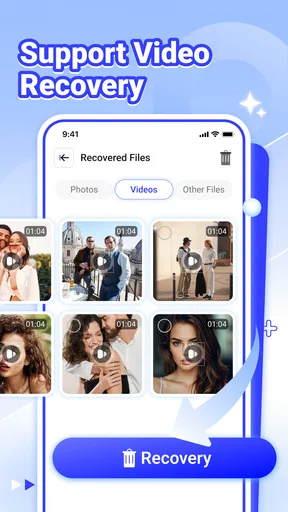
- Recovers recently deleted photos and videos from accessible device storage.
- Simple interface makes scanning and restoring files easy for beginners.
- Can preview recoverable images before selecting what to restore.
- Works without requiring a computer or additional recovery hardware.
- Useful for quickly finding accidentally deleted media on Android devices.
Limitations of Photo Recover-File Recovery
- Recovery success depends heavily on whether deleted data has been overwritten.
- Deep scans may take considerable time and use extra battery power.
- Recovered files may lose their original names, folders, or metadata.
- Some advanced recovery features may require in-app purchases.
- Results can include duplicates, thumbnails, or unrelated cached images.
Similar Picks in This Category
View All
Google LLC4.0

Gboard - the Google Keyboard
Google LLC4.5

Google Play services
Google LLC4.3

Google Play Store
Google LLC4.9

Files by Google
Google LLC4.5

SHAREit: Transfer, Share Files
Smart Media4U Technology Pte.Ltd.4.3
Frequently Asked Questions
What is Photo Recover-File Recovery used for?
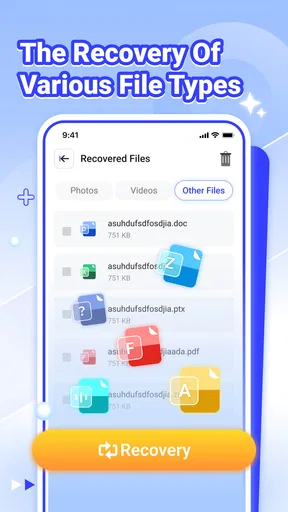
Photo Recover-File Recovery is designed to help users find and restore deleted or accidentally lost photos and, depending on the device and app version, other media files. After installation, it scans available storage for recoverable items and presents the results for review. Its success depends on whether the deleted data has already been overwritten by new files.
Can Photo Recover-File Recovery recover every deleted photo?
No recovery app can guarantee that every deleted photo will be restored. Photo Recover-File Recovery may work well when deletion happened recently and the storage space has not been reused, but results can vary by device, Android or iOS restrictions, file type, and storage condition. It is best to stop taking photos or downloading files before scanning to improve the possibility of recovery.
Does the app require root access or special permissions?
Photo Recover-File Recovery normally requests permission to access photos, media, or device storage so it can search for recoverable files. Basic scanning may work without root access on many Android devices, although deeper scans can require additional system privileges depending on the phone model and operating-system version. Always review the permissions shown during setup before granting access.
Is Photo Recover-File Recovery free to download and use?
The application may be available as a free download, but some features can be limited by advertisements, in-app purchases, subscription plans, or a premium upgrade. Restrictions may include advanced scanning, unlimited recovery, higher-quality previews, or removal of ads. Check the current store listing and the payment screen carefully so you understand what is included before confirming a purchase.
Are recovered photos saved automatically, and where can I find them?
Recovered files are generally not returned automatically to their original folders. After selecting the items you want, Photo Recover-File Recovery usually asks you to save or export them to a chosen location, such as internal storage, a gallery folder, or cloud storage. Confirm that the destination has enough free space, then check the app’s recovery folder or your device gallery.
